Official Manual · Getting Started on iPhone and iPad
Shadowrocket Import and Connection Guide
Follow these steps: add a server or subscription, choose a routing mode, connect, verify, and troubleshoot. For your first setup, confirm that an existing server connects before adjusting rules or On Demand conditions.
The screenshots below are official App Store screenshots. The interface may vary by device and app version. If you can’t find an option, look for its English label rather than relying on its position in a screenshot.
Step 01 · Add Server / Subscribe
Add a Server or Import an Existing Subscription
A subscription URL, a single-server share link, and manually entered server details are different types of input. Identify what you have before choosing the corresponding option.
Import a Subscription with Subscribe
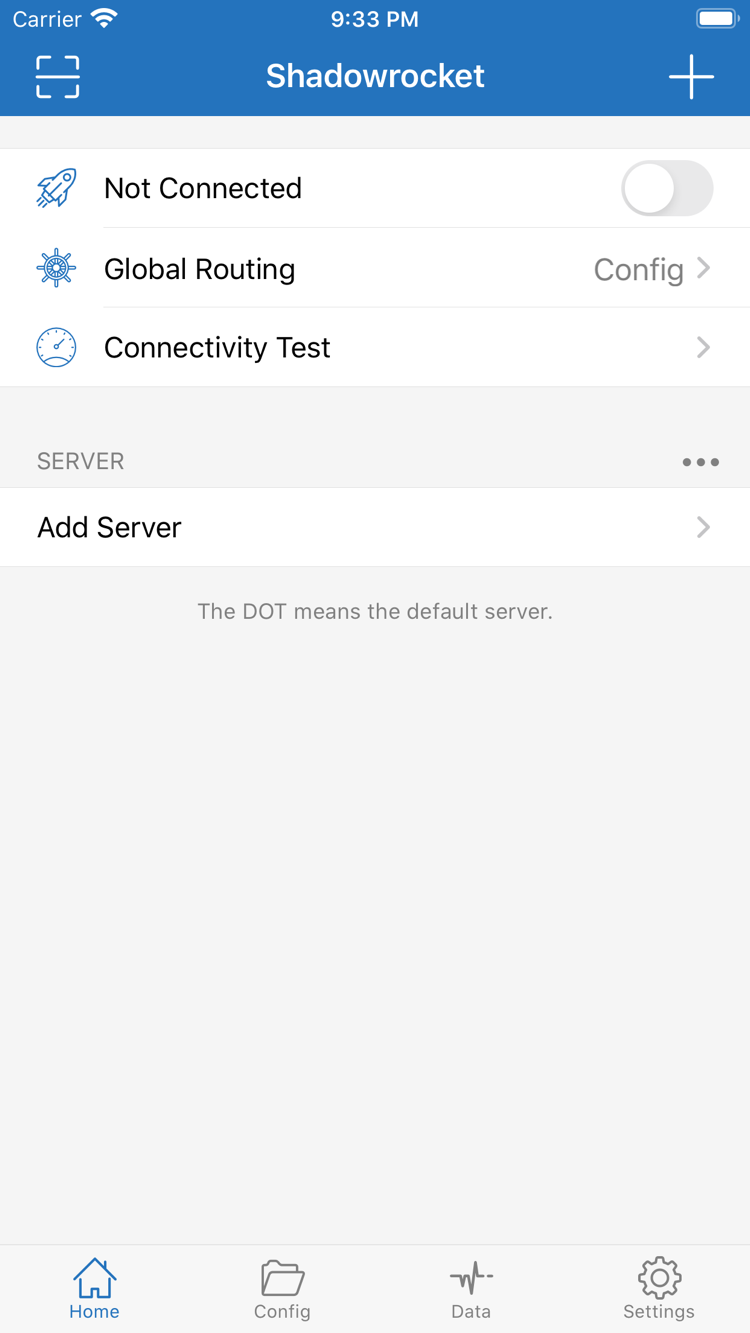
Open Shadowrocket and go to Home. Tap the add button in the upper-right corner or Add Server in the list. Under Type, choose Subscribe, enter the complete subscription URL from your provider in the URL field, and save. Keep the entire URL, including its path and parameters. Extra spaces, line breaks, or explanatory text can prevent the app from reading it correctly.
Return to Home and wait for the subscription to load. Check whether server entries appear under SERVER. A subscription name without any entries doesn’t mean the import succeeded. First check that your device’s current network can reach the subscription URL, then make sure the link is still valid. To refresh a subscription, use the update option for its group. Don’t repeatedly add the same URL, as this can create duplicate groups that are hard to distinguish.
Subscription URLs may contain credentials. Don’t post the full URL publicly or include it in this guide’s examples. If your provider gave you a share link for a single server, use the corresponding import option rather than entering it as a Subscribe URL. If you’re unsure what type of link you have, ask your provider to confirm its format.
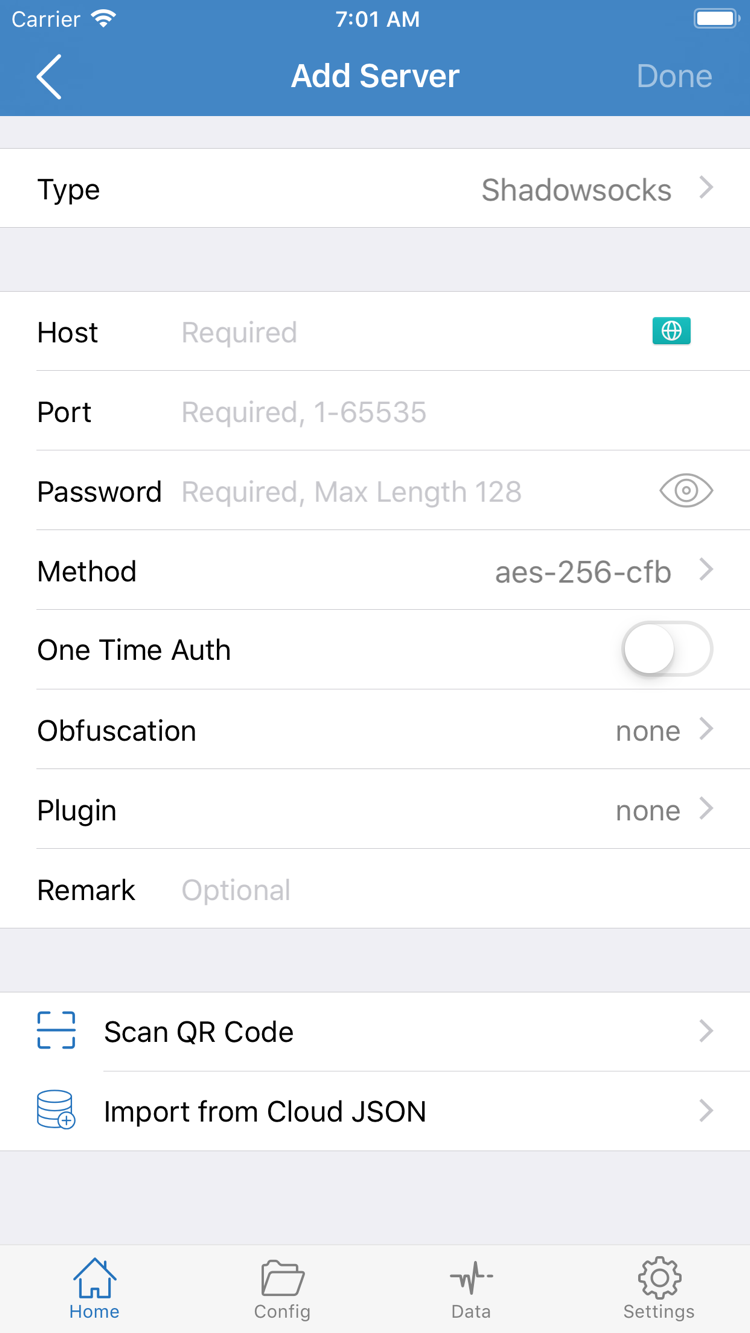
Enter Server Details Manually with Add Server
If you have a server address, port, and authentication details, select a Type in Add Server and fill in the fields shown for that type. For example, with Shadowsocks, check Host, Port, Password, and Method. Other protocols use different authentication and transport fields; don’t reuse fields from one type for another.
Enter only the hostname or address provided by your provider in Host; don’t add a web path. Port must match the server settings. Copy the password and other authentication values exactly, including capitalization. Check any requirements for TLS, transport, paths, or server names as well. Don’t save with only an address and port, then keep retrying.
If you have a QR code, use Scan QR Code and allow camera access when prompted. Import from Cloud JSON is for data in the supported format, not a general-purpose way to import any web address. Whichever method you use, return to Home and confirm the new entry appears. Leave the connection switch off for now; first decide how traffic should be routed.
Step 02 · Global Routing / Config
Choose Global Routing
A server entry determines where the connection goes; Global Routing determines how traffic is handled. Check both.
Return to Home and tap Global Routing. Start by understanding the three basic modes: Config, Proxy, and Direct. After choosing one, return to Home and check the value displayed beside Global Routing. If you’ve edited a configuration but Proxy or Direct is selected, you can’t use that to check whether its rules work—the current mode isn’t routing traffic according to those rules.
Config: Route Traffic by Rules
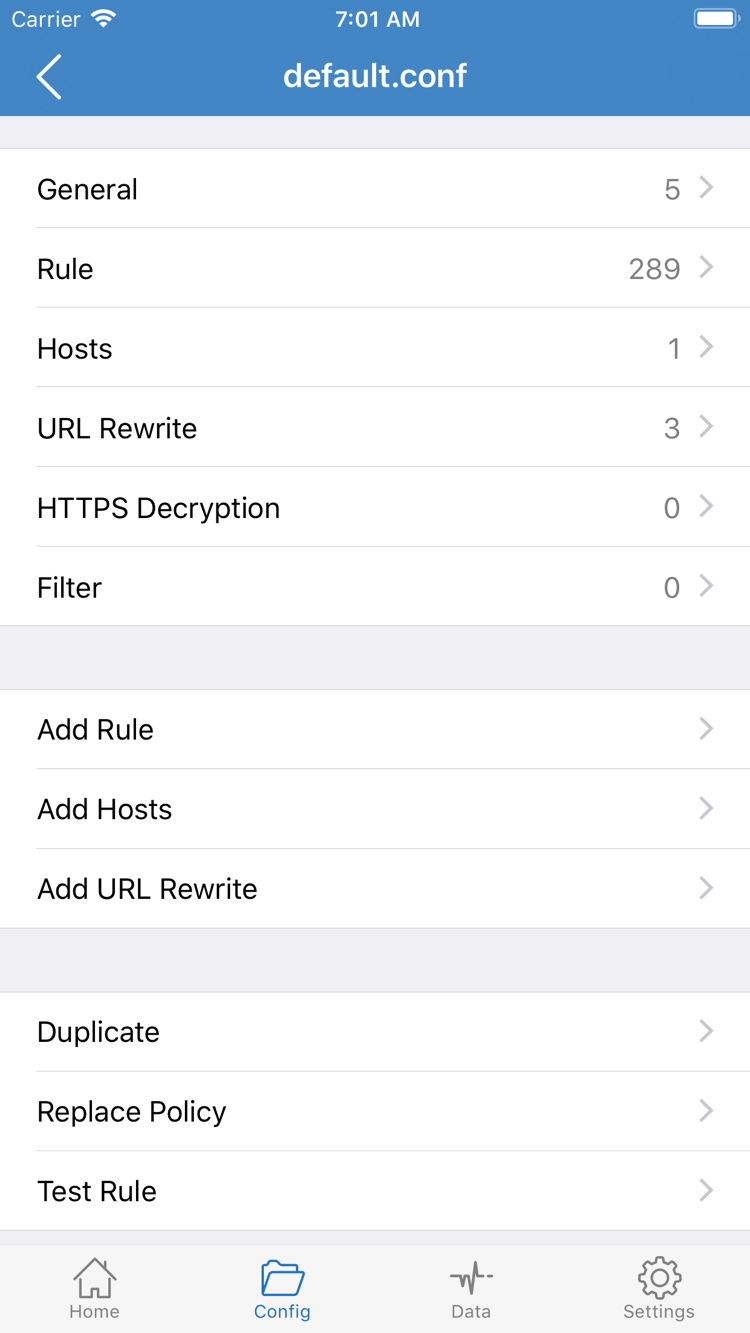
With Config selected, traffic is matched against the rules in the active configuration. Open Config and confirm which configuration is in use; seeing a file in the list doesn’t mean it’s active. Open the configuration and check the rules and their order under Rule. General, Hosts, URL Rewrite, and HTTPS Decryption are other configuration sections shown in the screenshot; you don’t need to change them for your first connection.
Rules are generally matched from top to bottom, and the first match determines where traffic goes. For example, this teaching snippet sends a specified domain suffix to the PROXY policy and everything else to DIRECT. The example domain illustrates the syntax; it isn’t a test target for checking connectivity. Actual configurations may also use policy groups, so the last line alone won’t tell you where every request goes.
DOMAIN-SUFFIX,example.com,PROXY
FINAL,DIRECT
When using Add Rule, check the rule type, match value, policy, and insertion position before saving. Don’t overwrite an entire existing configuration just to get connected for the first time; save a copy before experimenting. Importing a server doesn’t mean you’ve imported routing rules that suit your needs. Check the server list in your subscription and the configuration file in Config separately.
Proxy and Direct: Set How Traffic Is Handled
With Proxy selected, traffic handled by the app is routed in Proxy mode. This can help narrow down issues by temporarily ruling out complex rules. With Direct selected, traffic uses Direct mode; don’t expect it to use the selected remote proxy server. “Proxy” also doesn’t mean that every type of communication on your device necessarily follows the same route. Consider the system and the specific connection.
To check whether an existing server works, you can temporarily select Proxy, connect and test, then switch back to Config to check routing. Don’t change the server, rules, and DNS settings all at once, or it’ll be hard to tell what affected the result. This guide doesn’t cover the Scene option. See the Glossary for related terms and the User Manual for the full guide to rules.
Step 03 · Home / SERVER
Select a Server and Turn On the Connection
Set the default server before turning on the switch at the top. Opening an entry’s details and selecting it are two different actions.
Find the server you want to use in the SERVER list on Home. Tap the dot to the left of the entry to set it as the default server, then check that the selection indicator has changed. Tapping the details button on the right usually edits the server settings; it doesn’t select the server. If your Config uses a separate policy group, check the selection within that group too. The default-server dot on Home alone doesn’t show that all traffic will use that server.
If the list contains multiple servers, start by testing one with complete, clearly specified details. A latency test can help, but its result reflects only the response measured by that test method. It doesn’t guarantee that a website will load or indicate sustained transfer speed. Don’t enable complex automatic selection conditions before your first test. Keeping one server selected makes it easier to repeat and compare results.
After confirming the Global Routing mode, turn on the connection switch at the top of Home. The first time you connect, the system may ask to let Shadowrocket add a VPN configuration. Check the app name in the prompt, allow it, and complete authentication with your passcode or biometrics as required. This authorizes the app to handle traffic through the system network interface; don’t enter your server password in the system prompt.
Return to Home and check whether the status at the top has changed from Not Connected. If the switch turns off again immediately, first check that system authorization is complete, then check for another active VPN connection. Don’t toggle the switch rapidly to resolve authorization issues. Stop, read the prompt, and follow the troubleshooting steps in the final section.
A VPN status indicator or an app switch that stays on only shows that the connection configuration has started. It doesn’t, by itself, prove that the remote server is available or that a website matched the expected rule. Keep the server and routing mode unchanged, then continue to the next step to verify the connection. To disconnect after testing, turn off the switch at the top of Home and confirm that the connection status changes.
Step 04 · Connectivity Test / Data
Verify Connectivity and Traffic Routing
Tap Connectivity Test in Home and wait for the result. It checks whether the selected test target is reachable; it doesn’t prove that every website will work. If the test times out, note the current server, Global Routing mode, and network. Don’t clear the configuration right away—these details help distinguish server, routing, and local network issues.
Check Connectivity First, Then Check the Expected Route
Open a browser and visit a website you use regularly and know how it should connect, then reload the page. Confirm that the current request completes—not just that cached text or images are visible. If one site fails, test another known reachable site. If only one target has an issue, focus on that target rather than concluding that the entire connection is down.
With Proxy selected, you can first check whether the current server connects. After switching back to Config, check the target domain against the rules and their order to see whether traffic follows the expected route. A website may load resources from multiple domains, so a partially loaded page doesn’t necessarily mean the connection switch failed. For a more precise check, review available connection or diagnostic logs to see which policy handled the request, rather than relying only on whether the page opened.
Check Data for changes in upload and download readings during the test. This can help indicate that traffic passed through the app, but an increase doesn’t prove it went through a remote proxy. Direct requests and background communication may also affect the readings. Don’t treat Data figures as proof that a rule matched, or assume they correspond exactly to your provider’s account or carrier bill.
Change One Condition at a Time
If the result isn’t what you expected, keep the same server and temporarily switch Global Routing from Config to Proxy, then repeat the same test. If Proxy works but Config doesn’t, first check the active configuration, rule order, and policy selection. If both fail, check the server details, current network, and DNS. After comparing results, restore the mode you intend to use so temporary troubleshooting settings don’t become your permanent setup.
The basic import and first-connection steps are complete. To understand DOMAIN-SUFFIX, FINAL, or policy groups, see the Glossary. For more on building rules and managing configuration files, read the Complete User Manual. You don’t need to change every setting during your first connection.
Step 05 · Settings / Diagnostics
Troubleshoot One Step at a Time
Keep your current configuration and start at the step where the issue occurred. Check or change one thing at a time, then test again.
Import Failed: Check the Input and Subscription Response
If no server entries appear in Home, return to Add Server and check that the Type is correct. Then confirm whether you entered a complete subscription URL or a single-server share link. If a subscription update fails, check your device’s network, whether the link is still valid, and the instructions from your provider. Adding the link again won’t fix an expired URL. Keep the existing entry and confirm the cause before replacing it.
Connection Switch Fails: Check System Permissions
If the switch at the top won’t turn on or turns off immediately, confirm that you completed the first-time authorization to add a VPN configuration. Check whether another VPN connection is already active. Open system settings to review Shadowrocket’s VPN configuration and any prompts, then return to the app and try again. Don’t delete all your servers or reset the entire Config first; authorization issues and an incomplete server list are separate problems.
Connected but Not Working: Check the Server, Routing, and Network
If the status has changed but websites still won’t load, check the default server, Global Routing, and that server’s settings in order. For a manually added server, check Type, Host, Port, authentication details, and any transport requirements from your provider. For a subscription, first confirm it has been updated and is still valid. If you have another server, compare it while keeping other settings unchanged. Don’t change the rules and test method at the same time.
If only some domains fail, check DNS and the route set by the active configuration. A DNS resolution failure and a remote connection failure are different problems; don’t replace all your DNS settings just because a request timed out. If possible, test the same server on Wi-Fi and cellular to find out whether the issue occurs only on one network. Keep an eye on data usage, and use the same target and routing mode for both tests.
Check Test and Diagnostic Settings
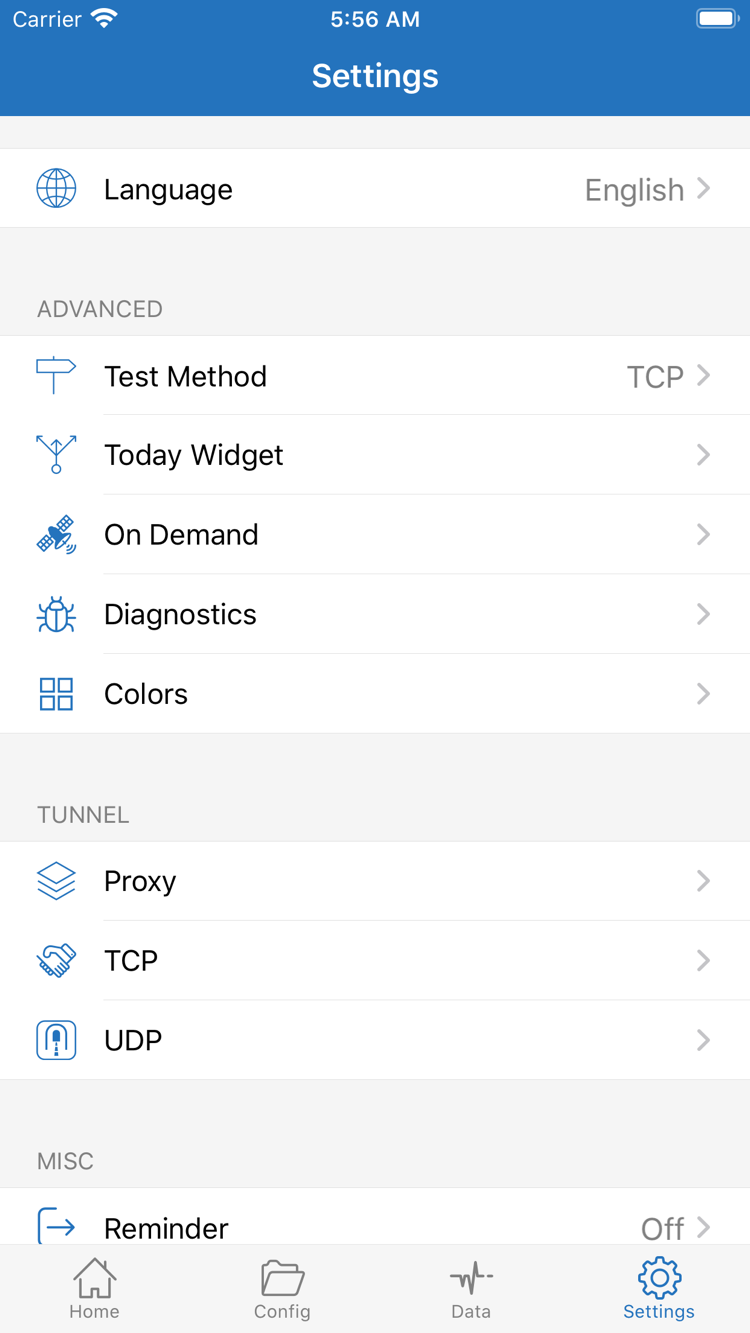
In Settings, start by checking Test Method. Different methods test different parts of the connection, so it’s possible for a server to respond in the list test while actual browsing fails. Keep the method the same when comparing results. Don’t rely on a single latency figure to judge every server function, or assume a failed test means there’s a problem with your account or app purchase.
Next, check On Demand. If the connection reappears after you manually disconnect, check whether an On Demand condition is triggering it. For initial troubleshooting, pause the relevant conditions and test manually with the switch in Home. Restore them after you confirm the basic connection. On Demand starts connections based on conditions; it can’t fix incorrect server details or replace connectivity testing.
To investigate an issue, check the available items and output under Diagnostics. A record of the error type, the step where it occurred, the routing mode, and whether you changed networks is more useful than simply saying “it won’t connect.” Before contacting your provider, redact credentials in subscription URLs, passwords, authentication identifiers, and personal network information. Don’t publicly share your full configuration or complete diagnostic output.
You don’t need to adjust every Proxy, TCP, or UDP option in Settings to get started. Keep the current values unless you’ve confirmed that a specific protocol or network condition is relevant, then follow the instructions for that setting. For more help, see Frequently Asked Questions or the User Manual for detailed setup and maintenance steps. Before returning to normal use, restore any temporary changes to your routing mode and On Demand conditions.